
PowerPoint Presentations
We have provided standardized templates to make it easier to consistently create professional presentations. Using these templates ensures that you are adhering to the suggested format for presentations.
UCLA Health PowerPoint® presentation
Every presentation is an opportunity to represent who we are and what we stand for. To help you deliver messages with impact and consistency, we’ve developed standardized PowerPoint templates aligned with the UCLA Health brand.
Using these templates ensures that our visuals, language and storytelling reflect the same commitment to excellence we bring to patient care, research and innovation. By starting with a unified design, your content can shine while reinforcing the strength of one UCLA Health brand.

Download UCLA Health and UCLA DGSOM PowerPoints
By downloading artwork, I agree to use the UCLA Health Logo(s) only as specified in Policy 110 and this Brand Guidelines site.
Powerpoint Tutorial
The Basics: Choosing a slide + Adding text and images
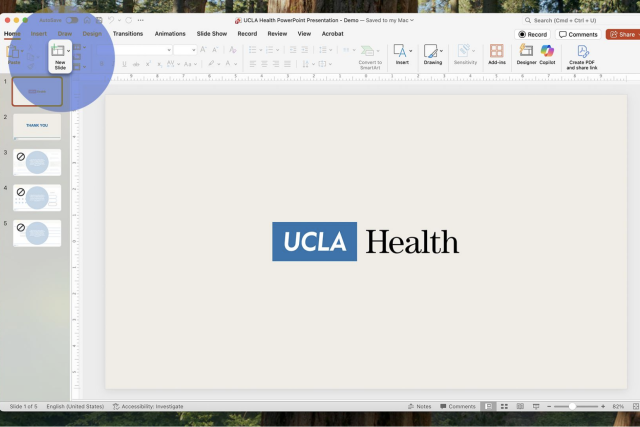
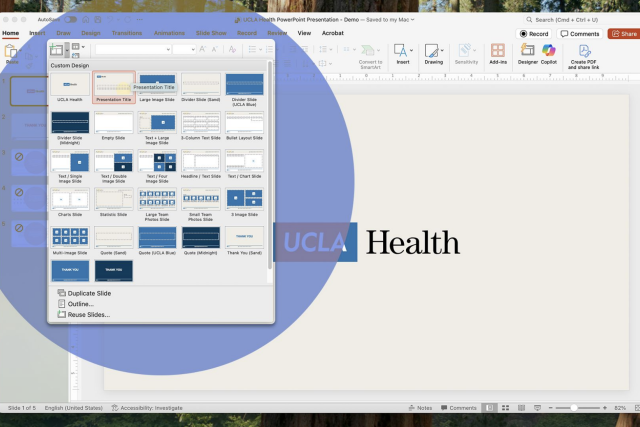
Open the Template and Choose Your Slide Layout
When you open the template, it will contain 5 preloaded unique slides. These slides aren’t templated for specific use cases, but contain elements that can be used to tailor any presentation to your needs.
To browse all available slides, go to Home > New Slide, click the drop-down arrow, and choose the slide layout that best suits your needs. For this example, we will select the Title Slide.
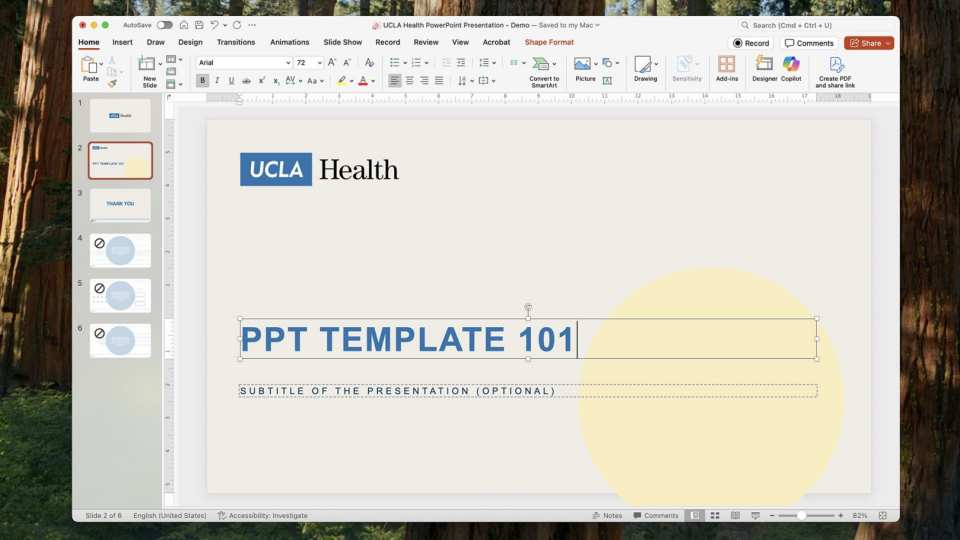
Add Text to Your Slide
Click on any text box to replace the placeholder text with your own. If left blank, the text box won’t appear in Slideshow mode.
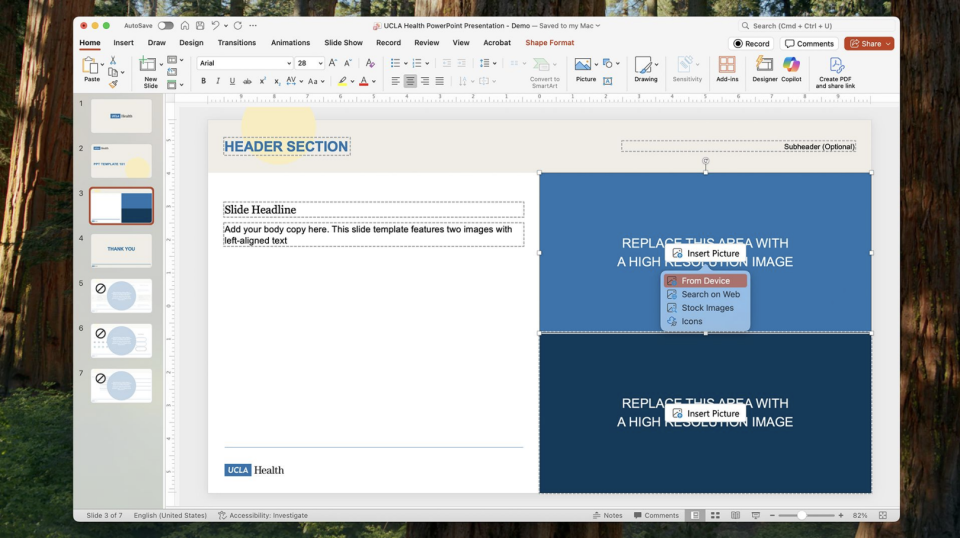
Add Images
To add an image, select any slide with a blue photo placeholder, right-click, and choose From Device to upload your picture.
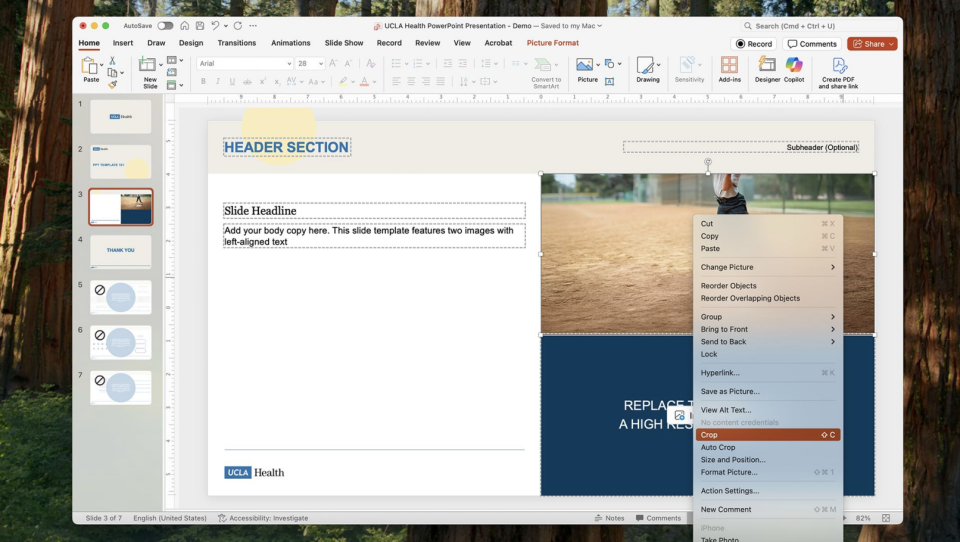
Adjust Image Position
Right-click the image, select Crop, and use the corner crosshairs to reposition the image inside the frame as you like.
The Basics: Importing existing presentation slides
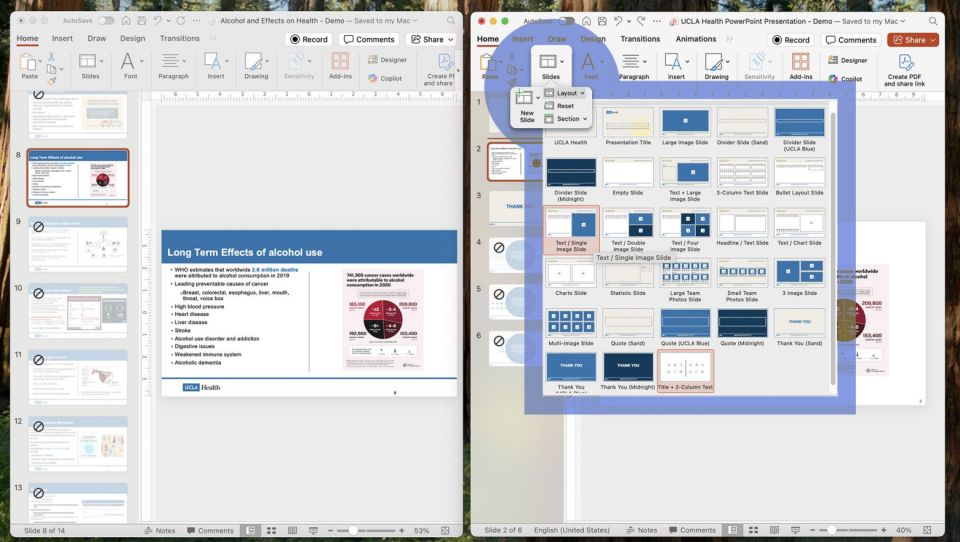
Transfer Slides to the New Template
- Drag a slide from your old presentation into the new template.
- Then, go to Home > Slides > Layout and select a layout to apply to your slide. The template will automatically adjust matching elements, but you may need to tweak some manually.
- When pasting any text, select Keep Text Only to maintain the new template’s font styles.
NOTE: Due to structural differences in older presentations, you cannot automatically apply the template to existing presentations.
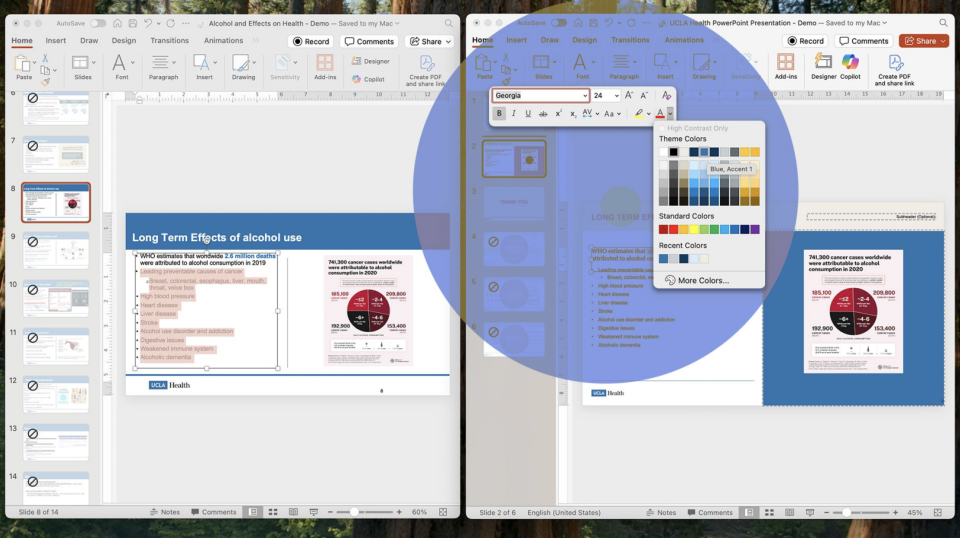
Adjust Text After Conversion
If any text formatting is lost (such as bold or color effects), use the Home tab to:
- Reapply styles like bold, italics and underline.
- Access additional brand-approved font colors from the drop-down menu next to the Font Color icon.
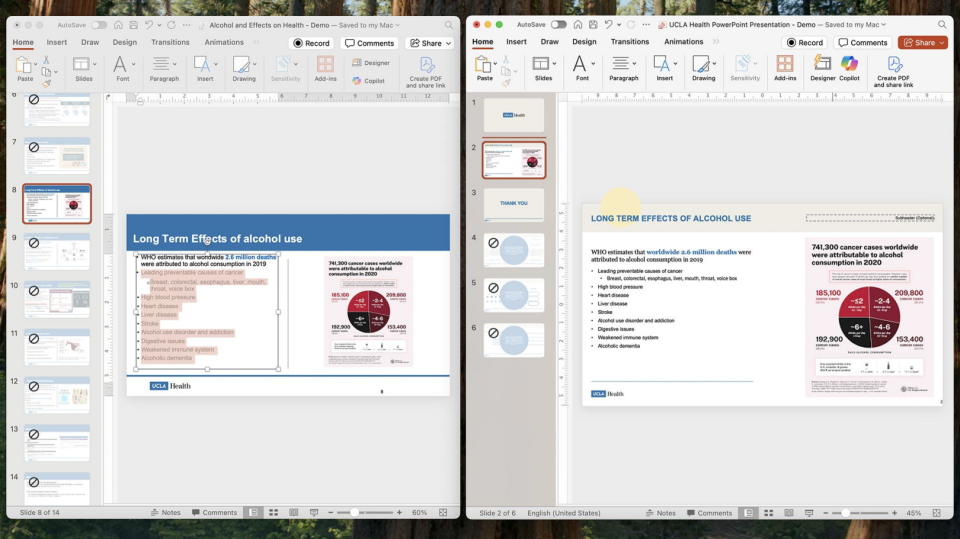
Make Custom Adjustments
While the template covers most use cases, feel free to make adjustments as necessary. For example, you can remove the blue image placeholder frame and resize your image to fit the slide